How to build a multi-channel media plan agencies can actually stick to
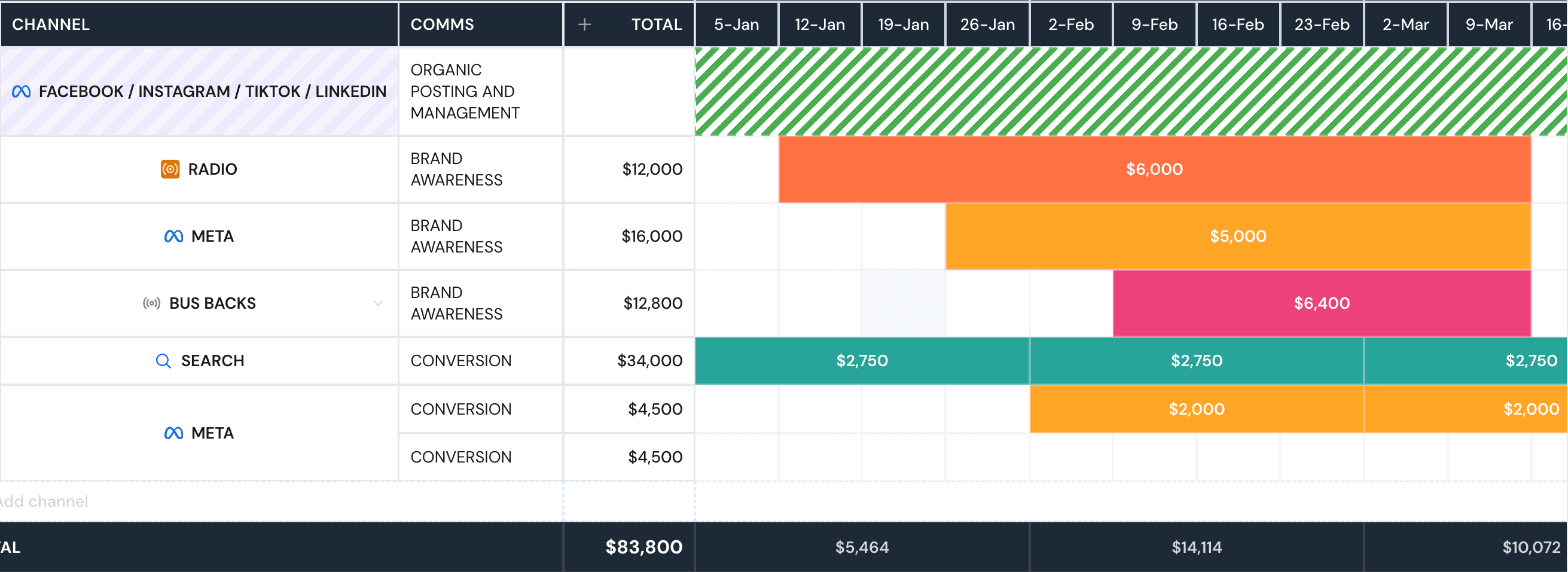
A media plan is only useful for as long as it stays accurate — and the moment it's built in a spreadsheet and campaigns go live, it starts drifting from reality. Actual spend diverges from planned spend, a channel launches a week late, a client asks to shift budget from one channel to another mid-flight, and the spreadsheet either gets updated by hand (inconsistently) or quietly stops being the source of truth.
The structure below is what tends to hold up once a plan is live across several channels — not because the format is clever, but because each piece maps to something that actually needs tracking later.
Start with channels and roles, not just budget splits
Before assigning numbers, decide what each channel is for. A plan that lists "Google Ads: $4,000, Meta: $3,000, Email: $500" without a stated role per channel makes every later trade-off conversation harder, because nobody agreed what success looks like for each line. Group channels by role — paid digital (Google, Meta, TikTok, LinkedIn), organic/owned (social, email), and offline (OOH, radio, print) — since each behaves differently for pacing and reporting. If you want a starting point to react to, the free AI media plan generator drafts a channel mix and budget split from a one-sentence brief, and the marketing funnel calculator works backwards from a sales target to the budget you need.
Set flight dates per channel, not just per campaign
Flight dates — the start and end of a channel's active spend window — often don't line up exactly with the overall campaign period. A launch channel like paid search might run the full flight, while an awareness channel like OOH runs only the first two weeks. Plans that only track one set of dates for the whole campaign lose this distinction, and it's exactly the distinction that matters when a client asks "why did spend drop in week three" — the honest answer might just be that a channel's flight ended on schedule.
Budget at the week level, not just the total
A channel total ($4,000 for Google Ads across six weeks) hides whether spend is supposed to be even, front-loaded for a launch, or back-loaded toward a promotional period. Breaking the channel budget into weekly targets gives you something to actually check actual spend against as the flight runs — which is the difference between "pacing looks fine" and "pacing looks fine relative to what, exactly." The free media plan builder lays budgets out on a weekly timeline, or you can start from the Excel media plan template, which has a weekly flighting grid built in.
Build in the check, not just the plan
The plan itself is the easy part. The harder part is the discipline of checking actual spend against planned spend on a cadence — weekly, at minimum — and having a real (not vibes-based) threshold for what counts as off-pace enough to act on. This is where PlanPulse's Gantt timeline view earns its keep: every channel's flight, weekly budget, and actual-vs-planned spend sit on one visual timeline, so a channel drifting off pace is visible at a glance instead of buried in a tab of a spreadsheet nobody's opened since kickoff.
The check only works if the results data is clean, so tag every channel's links the same way before launch. A UTM builder that can generate links for a whole plan at once keeps naming consistent, so GA4 reports each channel where the plan expects it.
Reuse what worked
Once a plan structure works for one client, the channel mix, flight logic, and budget cadence are usually 80% reusable for the next similar client — which is the whole point of a channel library: specs, SOPs, and past plan structures worth reusing shouldn't have to be rebuilt from memory every time.
Import, don't rebuild
If a media plan already exists as a spreadsheet — and for most agencies, it does — PlanPulse's media plan builder can import it directly rather than asking you to re-enter every channel and flight by hand. Actual spend then syncs in automatically from connected Google Ads, Meta, and GA4 accounts, so the plan and the live campaign data live in the same place instead of two.
See how anomaly detection catches drift once a plan is live →